Courier Port App for Shopify
Book shipments, print labels, and track orders with your courier company, right from your Shopify admin.
What the app does
The Courier Port App connects your Shopify store to your courier company’s CourierPort account. Without leaving Shopify, you can:
- book shipments for many orders at once;
- print airway bills (shipping labels) and load sheets;
- request pickups;
- see each order’s shipment status, and cancel a booking;
- mark orders as fulfilled with your courier’s name and tracking link.
The app is free. Shipping charges are set and billed by your courier company.
Before you start
- An account with a courier company that uses CourierPort, approved and ready to book.
- An API token from your courier’s shipper dashboard, under Settings > API Tokens.
- The install link for the app. The app is not listed in the Shopify App Store, so your courier company gives you the link.
Install the app
- Open the install link from your courier company while signed in to your Shopify admin.
- Review the permissions and click Install.
- The app opens on its home page, which asks you to connect your courier account.
Connect your courier account
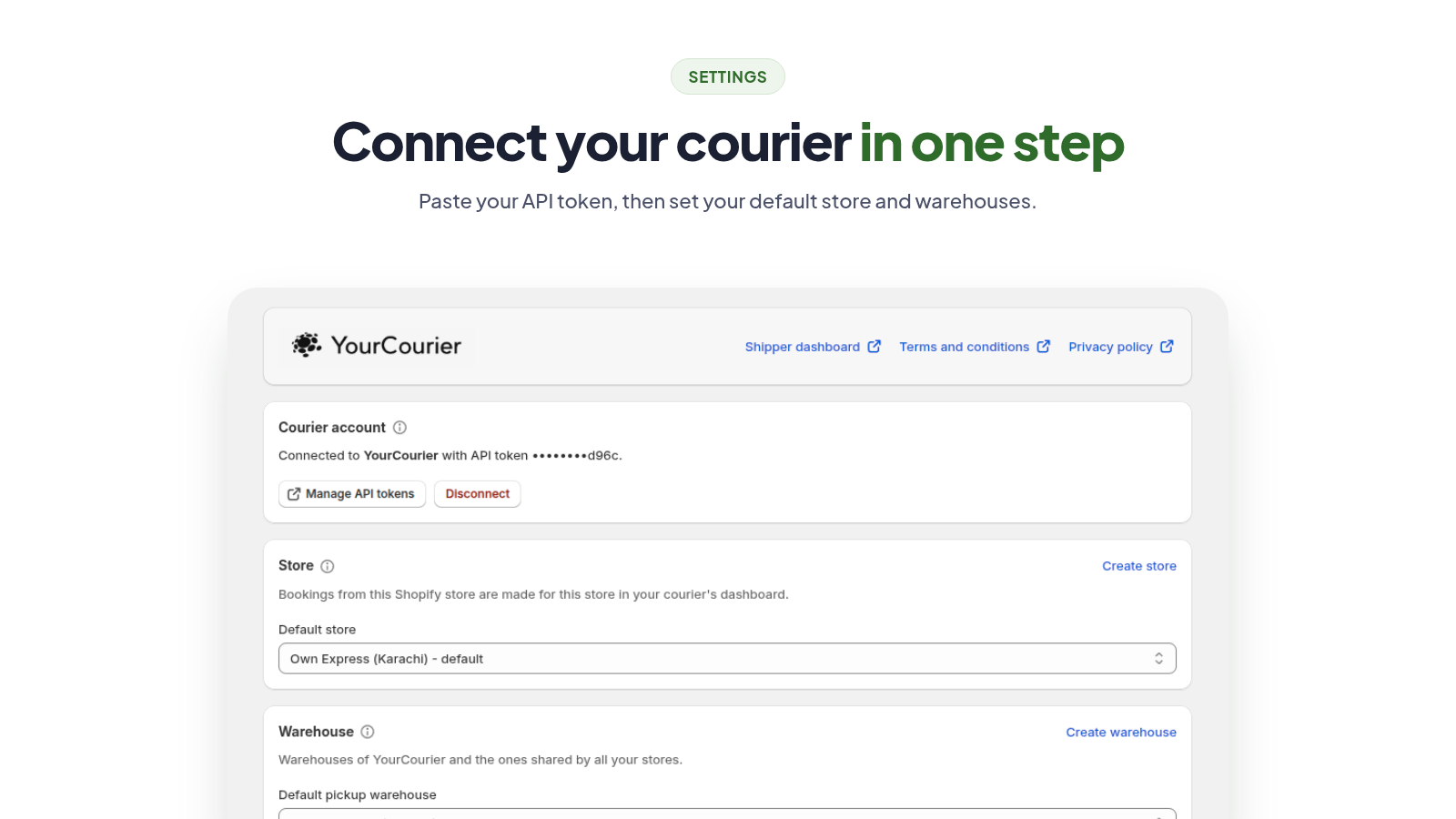
- In the app, open Settings.
- Paste your API token under Courier account and click Connect.
- Your courier’s name and logo appear at the top of Settings, with links to its shipper dashboard, terms and conditions, and privacy policy.
To use a different account later, click Disconnect and connect another token.
Choose your store and warehouses
- Store: choose which of your stores in the courier’s dashboard these bookings belong to. If you don’t have one yet, click Create store.
- Warehouse: choose your default pickup warehouse, where your courier collects parcels, and your default return warehouse, where returned parcels are sent. Click Create warehouse to add a new one.
- Other settings: choose whether your shipments are fragile or non-fragile by default.
Click Save Settings when you’re done.
Book shipments
- In Shopify, go to Orders and select the orders you want to ship.
- Click More actions > Create Shipments.
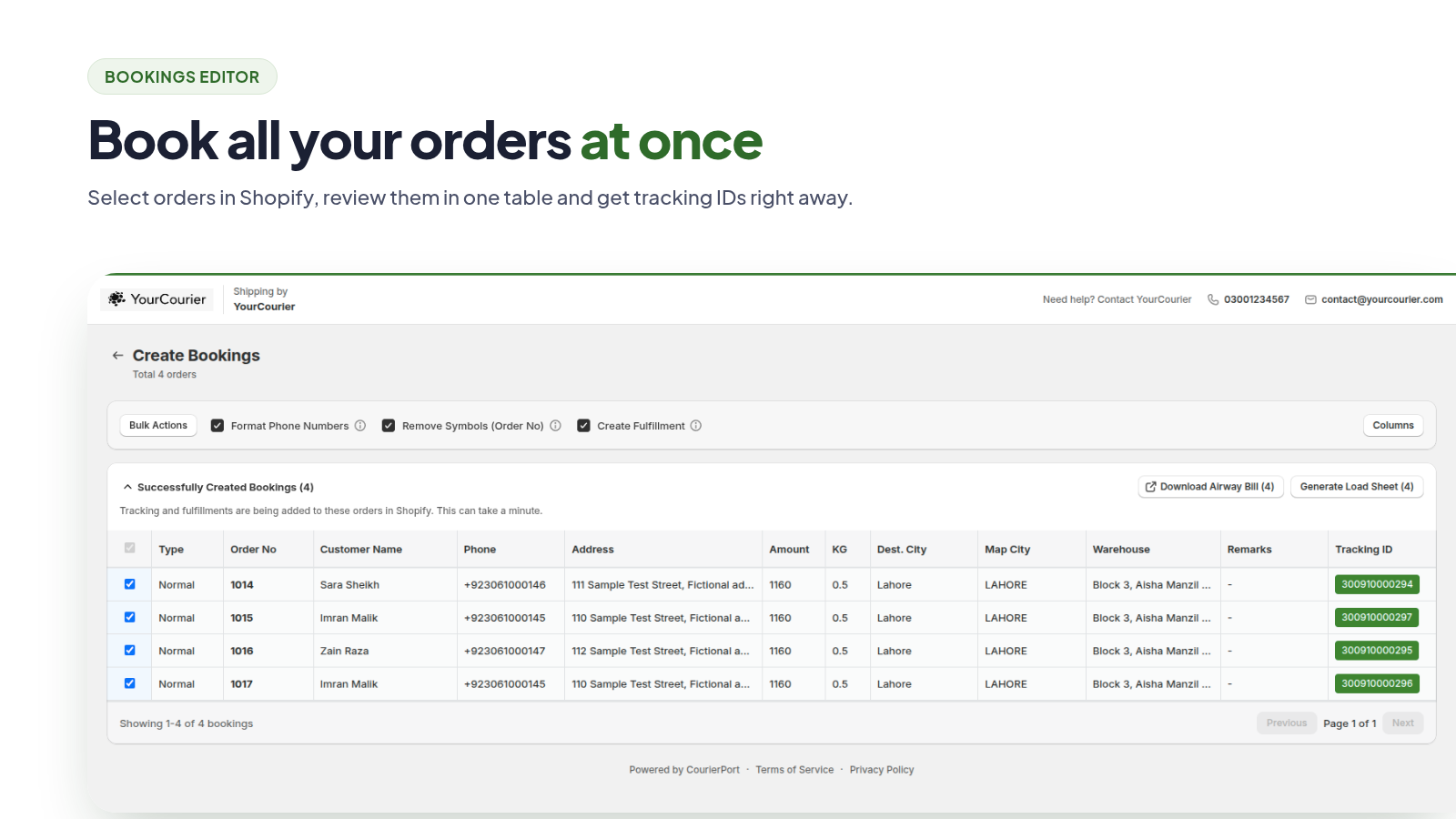
- The bookings editor opens with one row per order. Check each row and fix anything marked in red.
- Click Create Bookings.
In the bookings editor
- Map city: the app matches each order’s city to your courier’s delivery cities. If a city shows Not Mapped, click the cell, type the city name, and pick it from the list.
- Format phone numbers: on by default. Phone numbers are put in the standard format your courier needs.
- Remove symbols (order number): on by default. Removes characters such as
#from order numbers. - Create fulfillment: on by default. Booked orders are marked as fulfilled with the tracking number.
- Orders that were already booked are listed separately so they aren’t booked twice.
Print airway bills and load sheets
- Right after booking: in Successfully Created Bookings, select bookings and click Download Airway Bill or Generate Load Sheet.
- From the orders list: select booked orders, then Print > Print shipping labels.
- From an order: open the order, then Print > Print shipping labels.
PDF links open in a new tab and stay valid for five minutes. If one expires, click the button again.
Tracking and fulfillment
- After booking, each order gets its tracking number. If Create fulfillment was on, the order is marked as fulfilled with your courier’s name and tracking link, and Shopify can email your customer.
- Tracking numbers and fulfillments are added in the background. They usually appear within a minute, and you can print labels straight away.
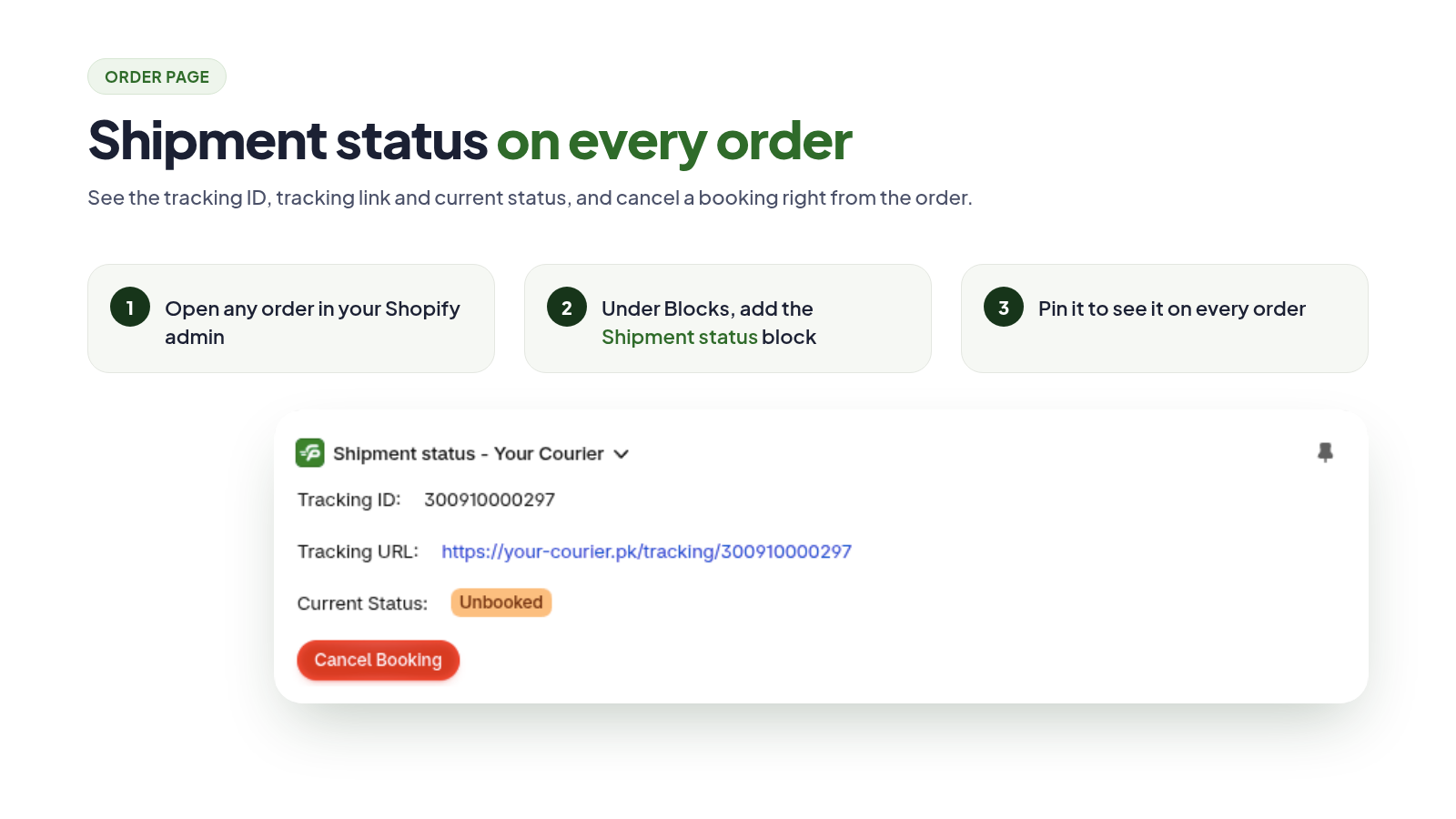
- On an order’s page, the Shipment status block shows the latest status and tracking link. You can cancel a booking there while your courier still allows it.
- To show the block on every order: open any order, add Shipment status under Blocks, and pin it.
Dashboard and shipments
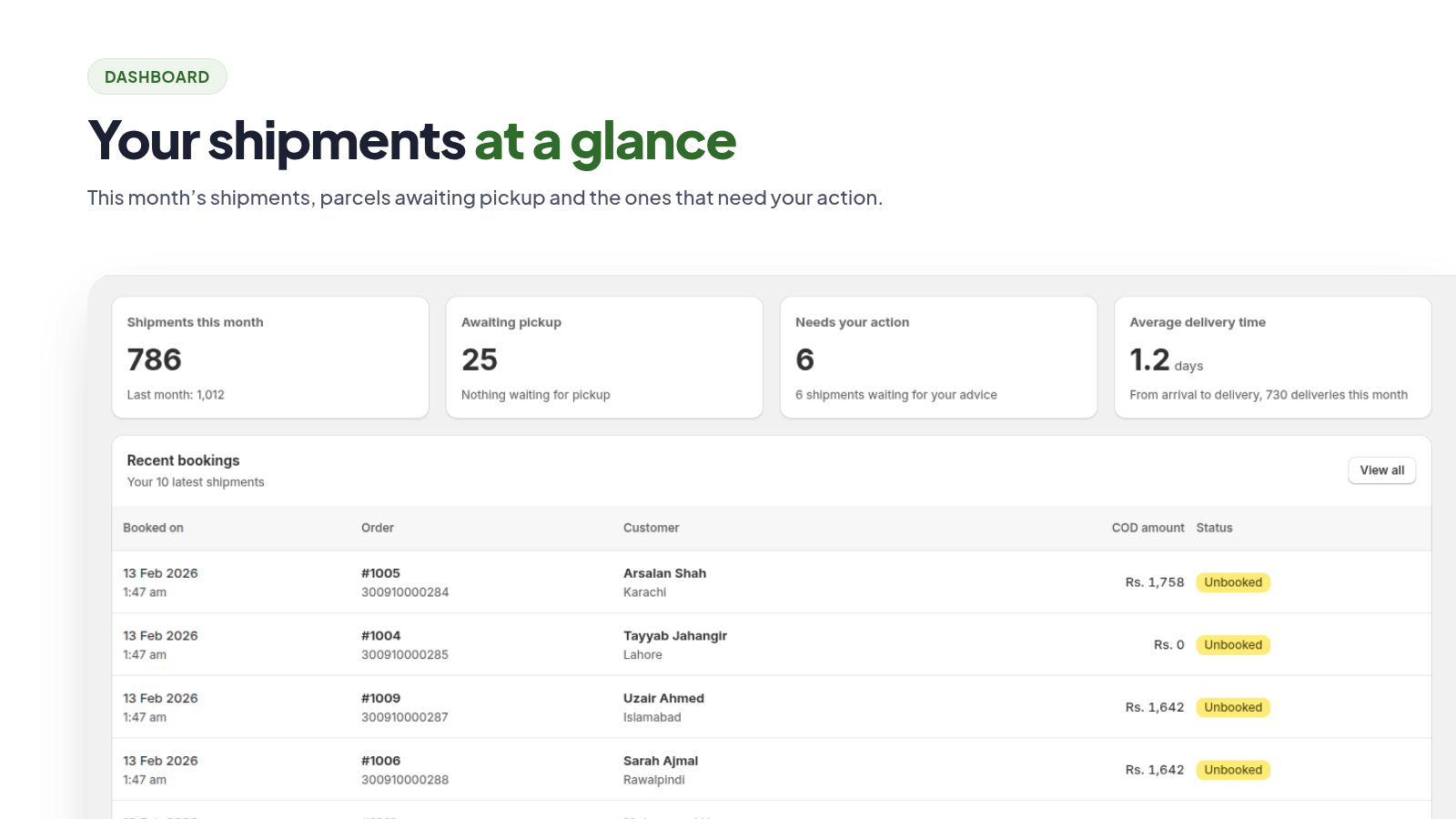
- Dashboard: the app’s home page shows your shipments this month (and last month), parcels awaiting pickup, shipments that need your action, your average delivery time, and your 10 latest bookings.
- Needs your action: shipments your courier is waiting on you about. Click View shipments to see them and answer in your courier’s dashboard.
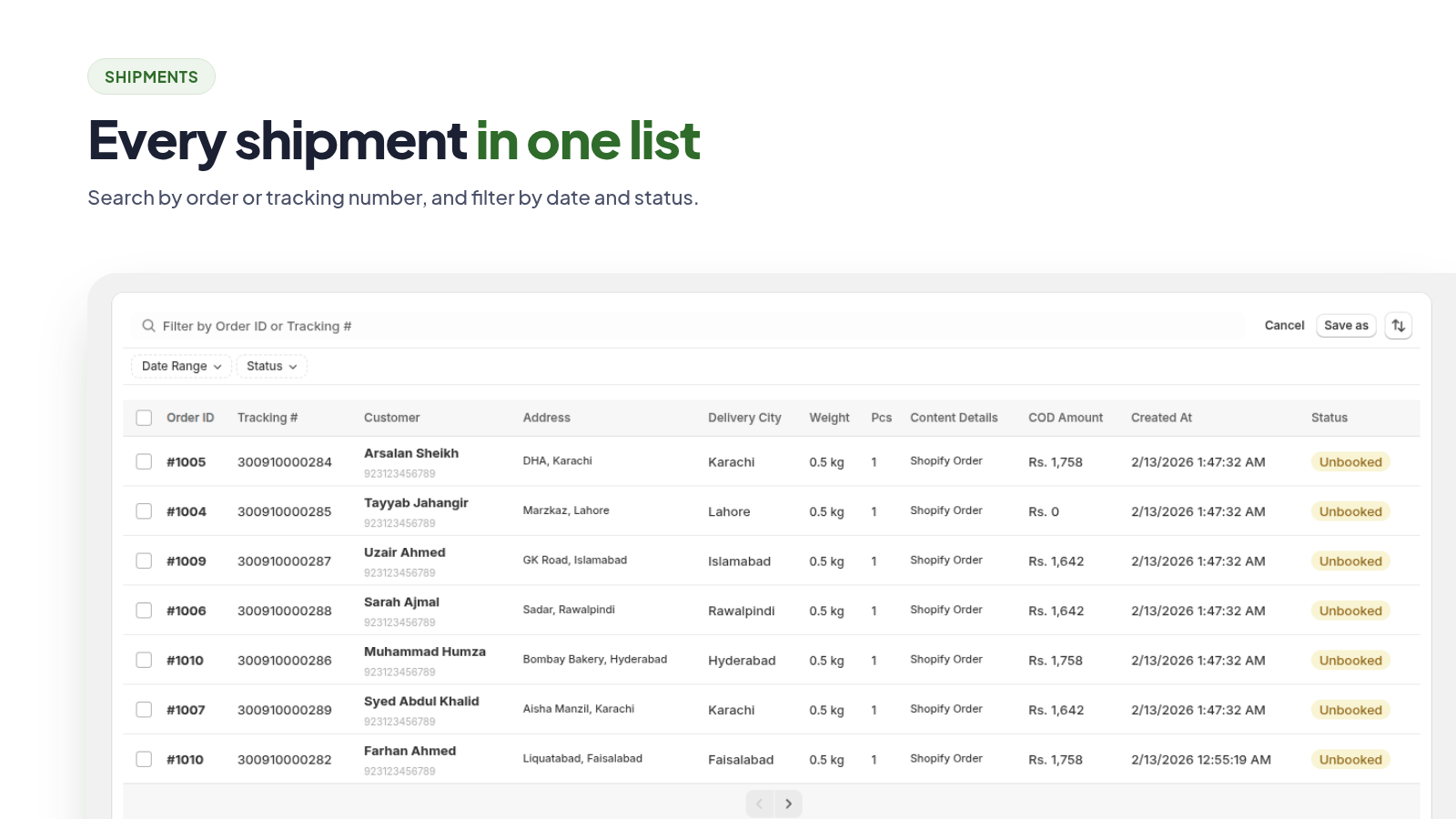
- Shipments: every booking with its tracking number, customer, delivery city, COD amount and latest status. Search by order ID or tracking number, and filter by date range or status.
Request a pickup
- In the app, open Pickup Requests.
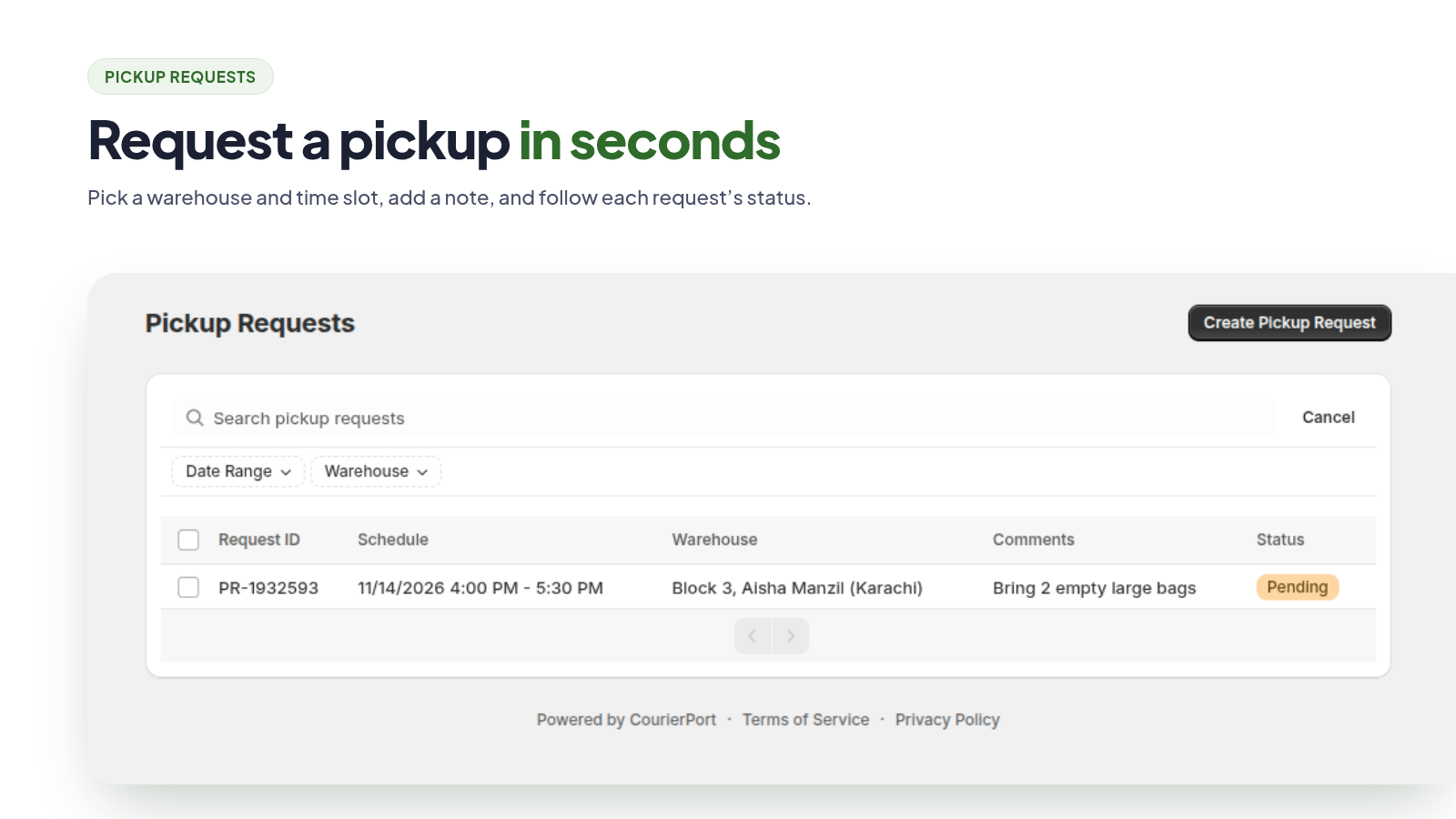
- Choose the pickup address, time slot, and any comments, and submit.
- Your earlier pickup requests and their status are listed on the same page.
Troubleshooting
- “Your courier account needs attention”: your API token was removed or has expired. Create a new token in your courier’s dashboard and connect it in Settings.
- No warehouses in the list: make sure the store chosen in Settings has a warehouse, or create one.
- A city can’t be found: your courier doesn’t deliver there. Contact your courier company.
- A booking failed: the editor shows the reason next to the order. Fix the field and book again.
- Tracking or fulfillment didn’t appear: wait a minute and reload the order. If it’s still missing, add the fulfillment by hand in Shopify, or contact us.
Uninstall the app
Uninstall the app from Settings > Apps in your Shopify admin. Shipments already booked continue with your courier. Your store’s data is deleted as described in the App Privacy Policy.
Help
- For deliveries, rates, Cash on Delivery, and claims, contact your courier company.
- For problems with the app itself, email [email protected].
See also the App Terms of Service and App Privacy Policy.